Install Software
You will first need to make sure that R, Rstudio, Rtools, Quarto and Git are installed on every instrument computer that you will be collecting daily QC data from. Follow along below for instructions for downloading each on a Windows computer.
R
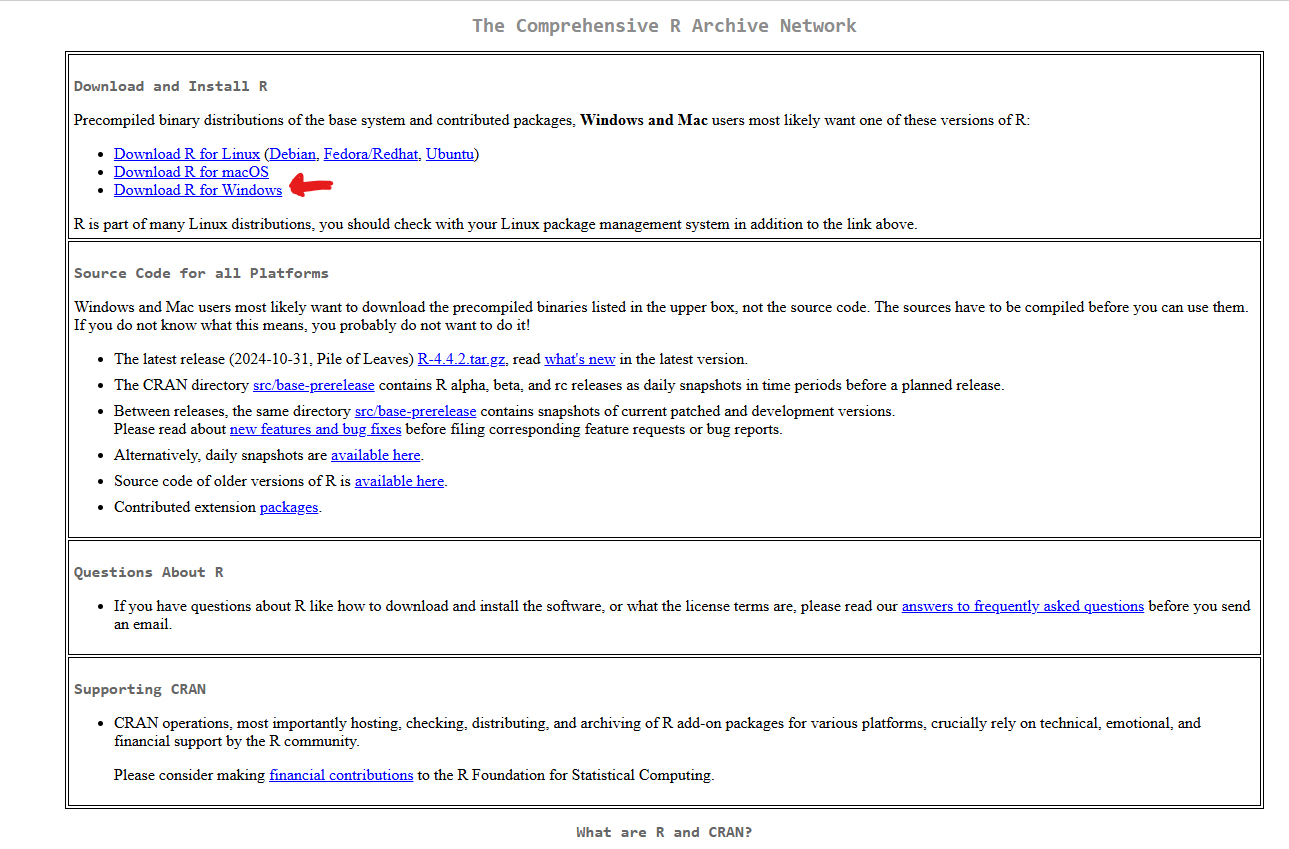
R is a free software and programming language used by researchers and data scientist worldwide. To begin you will need to navigate to the main website. You will first select Download R for Windows
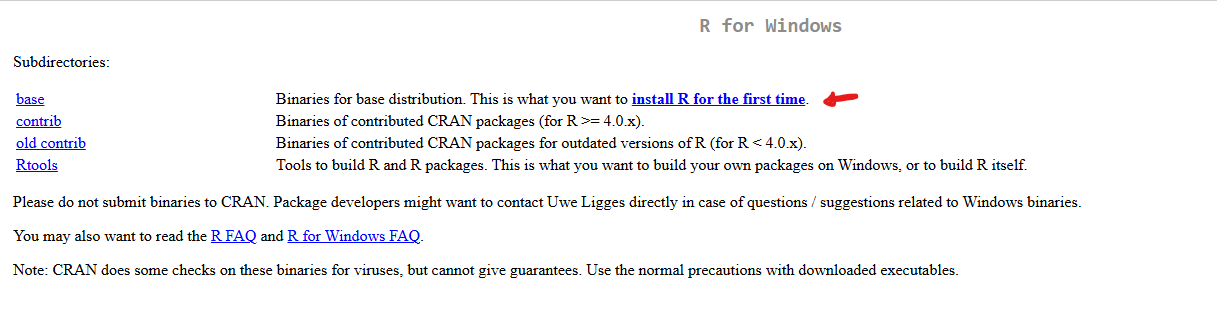
You will be redirected to the next screen, where you should select install R for the first time:
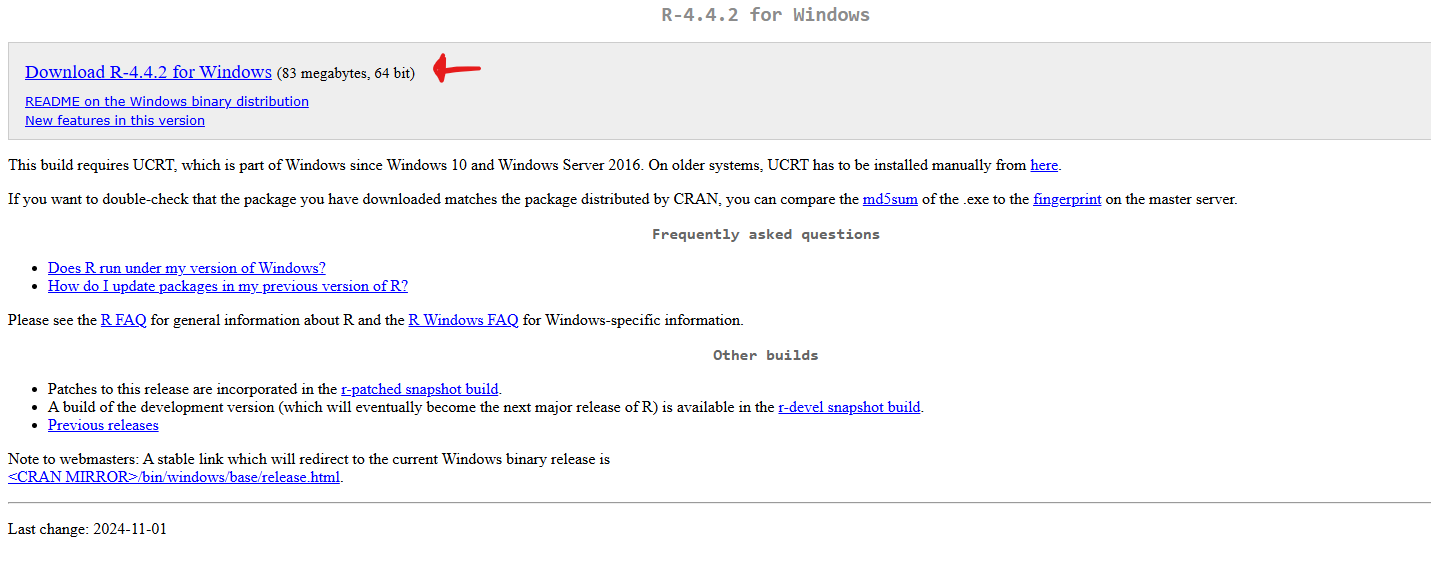
And finally you will see the following screen, where you will select the current version of Download R for Windows:
The next screen will ask where you want to save the installer. I generally place it on the desktop. Once downloaded, double click and proceed with the software installation, selecting the default options.
Rstudio
Rstudio is an integrated development environment (IDE), providing an interface with R that is friendlier to many users. We will use it in our context to set up project folders that will contain the code and data needed to process the QC data and export it to the dashboard.
To download, we first navigate to the website and select Download R Studio Desktop for Windows
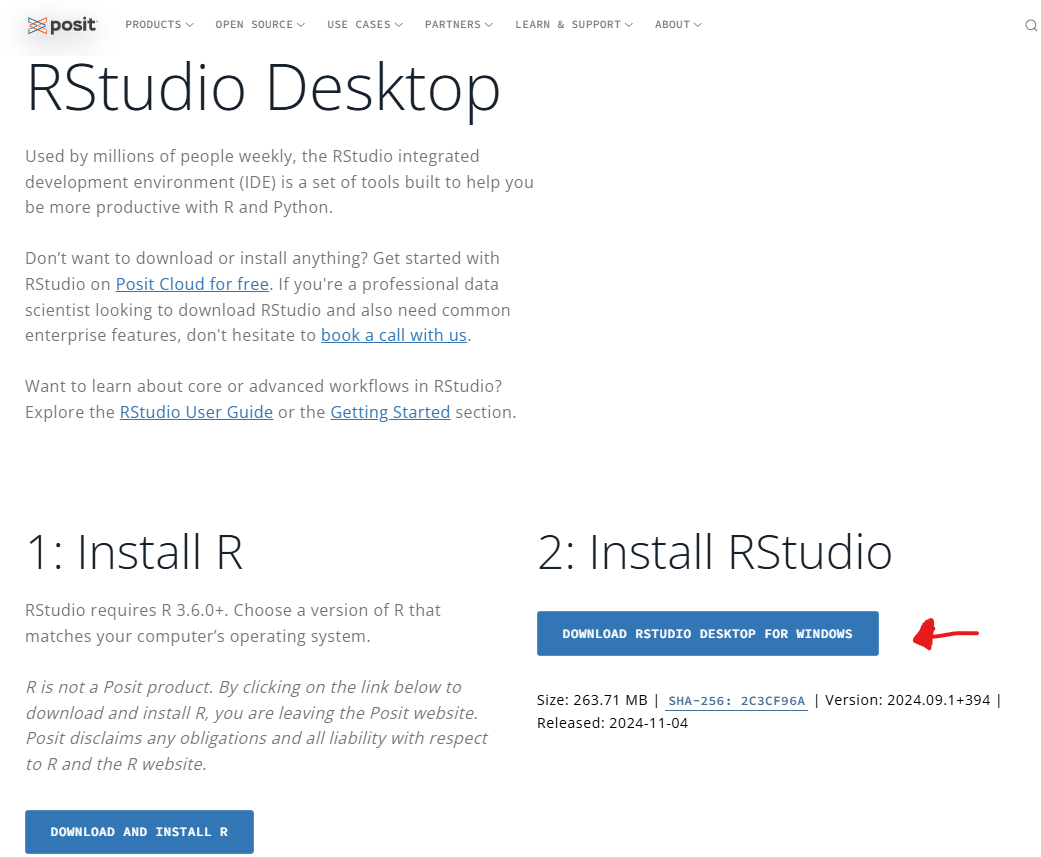
This will then proceed to show the pop-up asking where you want to save the installer. Save to the desktop, and then double click the installer. Follow the default installation prompts.
Rtools
R packages are made up of functions that carry out specific tasks. Some of the R packages that we will be using require compilation from source code, which requires installation of Rtools to mediate this process.
To begin, navigate to the website and select the most recent version of Rtools

Then, you will select the regular Rtools installer
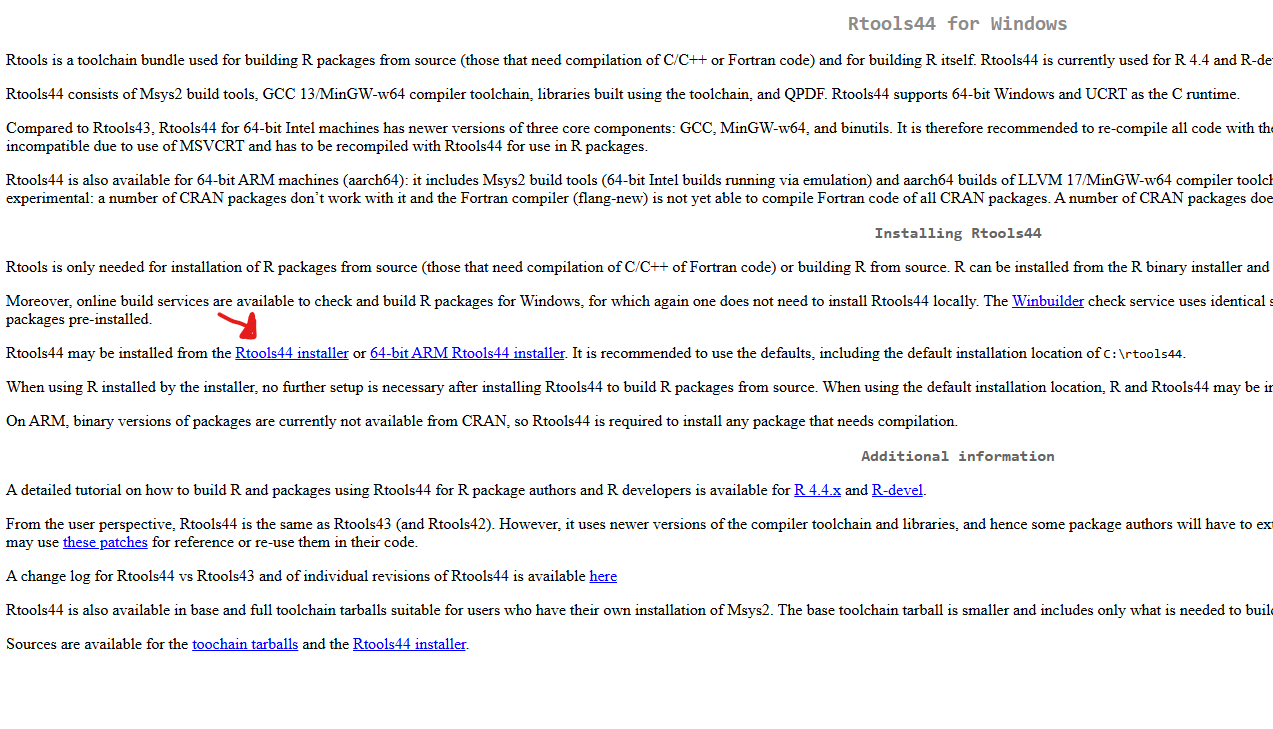
This will then provide the pop-up asking where to save the installer. Place on the desktop, then after it has finished downloading, double click to run the installer. Select the default options.
Quarto
The dashboard (and this website you are currently reading) are built with Quarto. It facilitates making websites from various programming languages commonly used by data scientist who didn’t start off as computer programmers. In our context, we will be using it as part of our code explanations, data visualizations, and to write reports.
To begin, after navigating to the website we will first select the Get Started tab
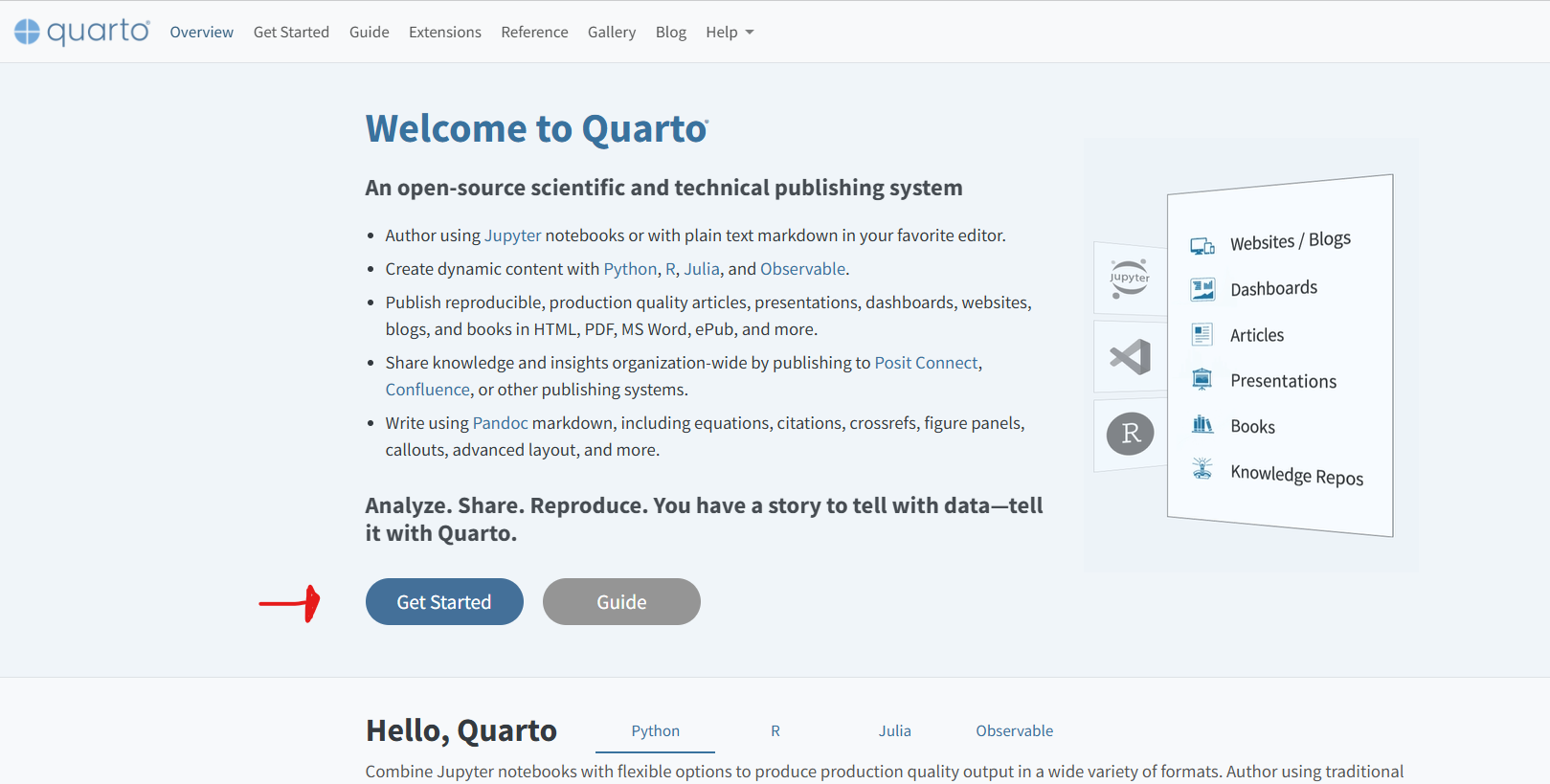
Then we will select Download Quarto Cli to download the most recent version for Windows.
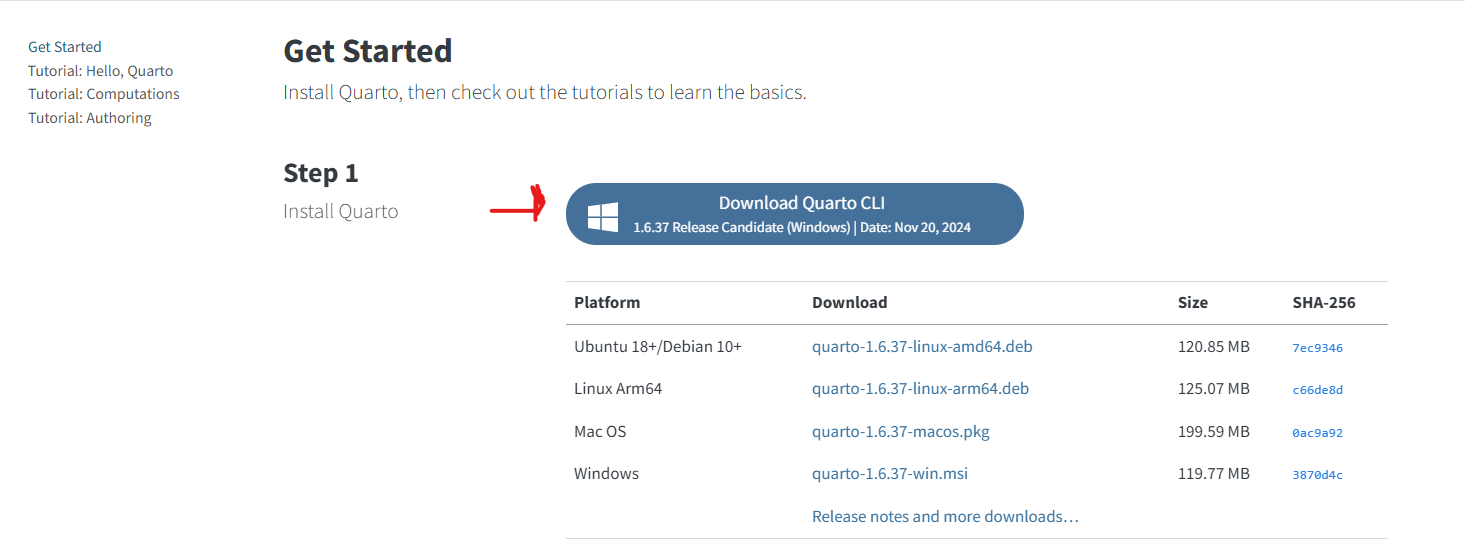
Finally, the pop-up asking where we want to save the installer will pop up. Save to the desktop, and after it finished downloading, double click and select the default options.
Git
Git is used for version control by many programmers. We will be using it in the keep track of changes to our code, and to manage our stored files on to GitHub.
To begin, we will first navigate to the website and select the download from Windows option.
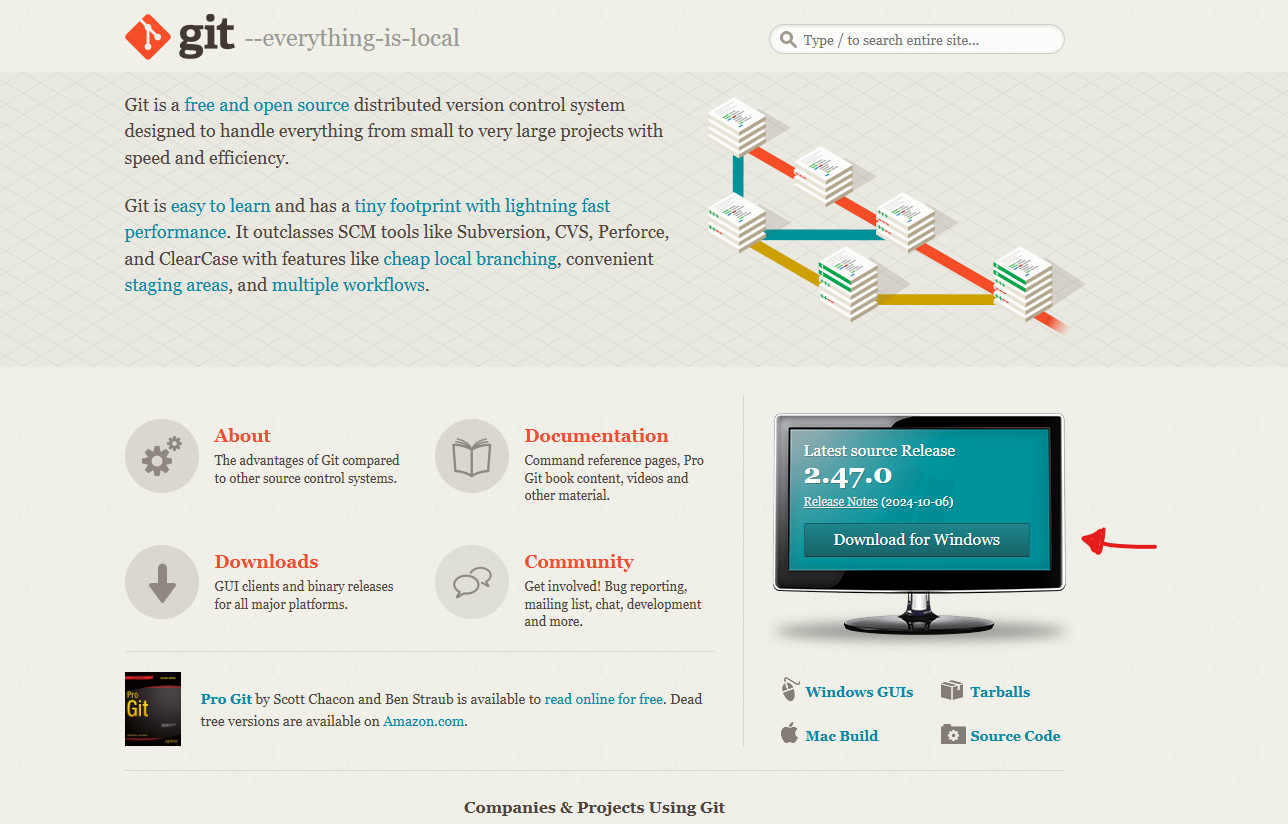
We will then proceed and select install 64-bit Git for Windows Setup option
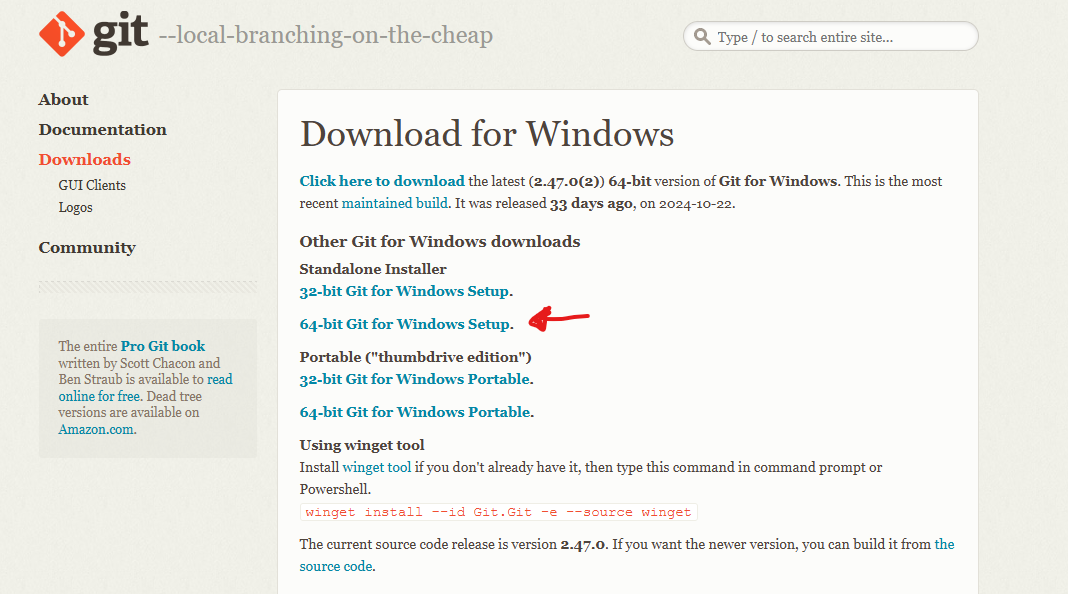
Finally, the pop-up will appear asking where to save the installer. Select and save to the Desktop. After the installer has finished downloading, double click, and accept the default options. Be advised, Git has a lot of options, for now, just accept all defaults without wandering off on a “What is Vim?!?” rabbit-hole.
Setting up GitHub Account
Now that you have installed the software needed on your computer, you will need to make sure to set up a GitHub account if you don’t already have one. We will use GitHub repositories to manage our projects and to save our code in a version controlled manner.
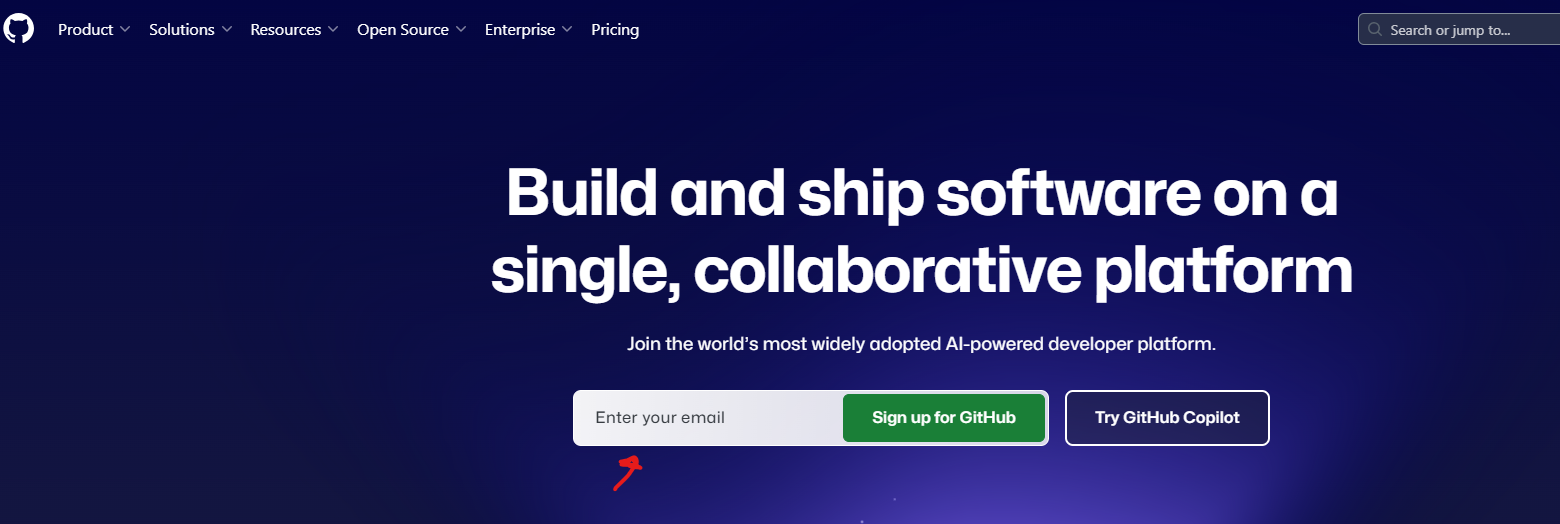
To begin, navigate to the website, provide an email and select Sign up for GitHub.
Then you will need to create an account and set a password.
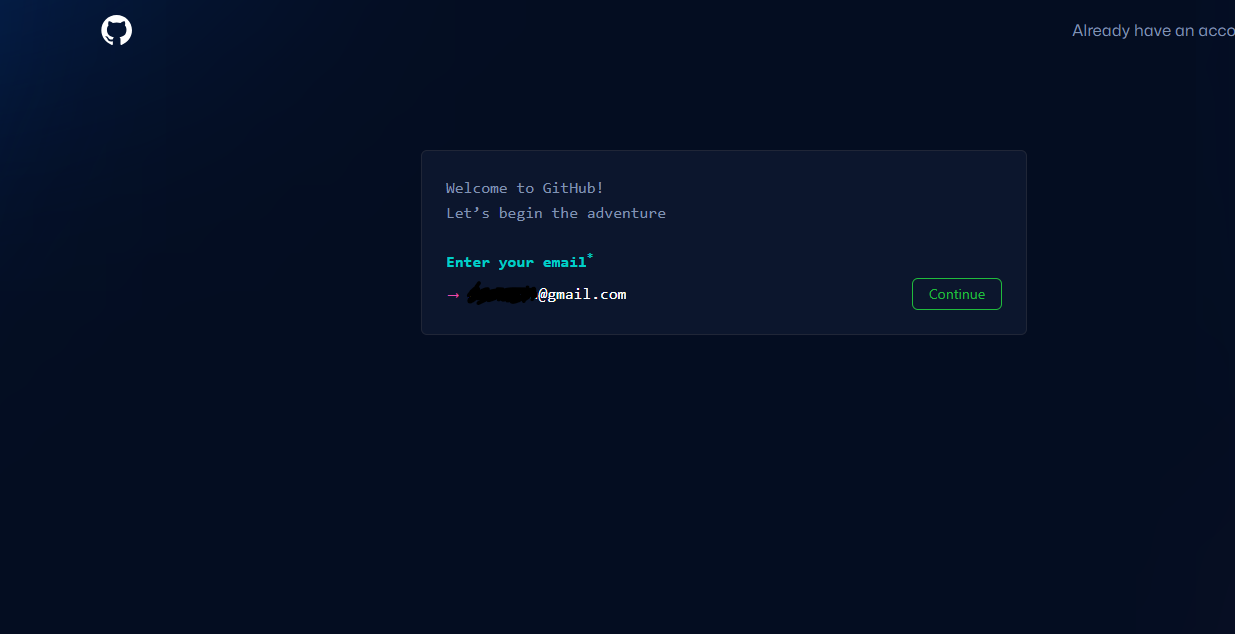
Proceed with the account creation, selecting the defaults (specifically the free versions).